Tags
Understanding Tags
Tags are labels you can apply to your creatives to categorise them. Playboard uses IAB Taxonomies — an internationally recognised categorisation system used in digital advertising.
Tags help identify what the content is about.
Examples:
- A restaurant promo → "Food & Drink"
- A kids' toy ad → "Family & Parenting"
- A car company promo → "Automotive"
Tags make it easier to manage content conflicts.
Types of Tags
Playboard supports two types of tags:
- IAB Taxonomies (Default)
- Standard categories defined by the Interactive Advertising Bureau (IAB).
- Examples: Attractions, Automotive, Business & Finance, Education, Entertainment, and many more.
- These are pre-defined and cannot be modified.
- Custom Tags
- You can create your own tags for specific categories.
- Examples: "Supermarket", "Concert", "Cinema".
- Custom tags are team-specific and can be edited or deleted.
Using Tags
To access and manage tags:
- Open the Tags page
- From the left sidebar, click Tags.
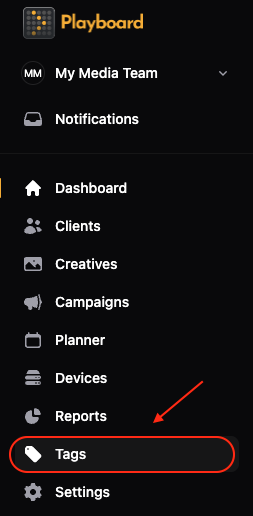
- Browse IAB Taxonomies
- Click the IAB Taxonomies tab to view standard categories.
- Use the hierarchical dropdowns to navigate through tag categories.
- Search for specific tags using the search field.
- Manage Custom Tags
- Click the Custom tab to view your team's custom tags.
- Click Add tag to create a new custom tag.
- Enter a tag name and click Add tag to save.
Applying Tags to Creatives
Tags are applied to creatives in the following ways:
- When uploading creatives
- Tags can be assigned directly to creatives during upload.
- Use the Tags field in the "Add new creatives" dialog.
- From client tags
- If a tag has been applied to a client, it will automatically be applied to creatives when uploading.
- This ensures consistent tagging for all creatives belonging to the same client.
- Editing existing creatives
- Tags can be added or removed when editing a creative.
- Open the creative menu and select Edit to modify tags.
Tag Conflicts
Tag conflicts occur when two bookings that contain creatives with the same tags appear sequentially in the loop order.
How it works:
- When planning content in the Planner, Playboard checks for tag conflicts.
- If two adjacent items in the loop have matching tags, a warning will be shown.
- The warning indicates the number of tag conflicts detected.
Resolving conflicts:
- Use the Sort bookings feature in Loop order to automatically minimize tag conflicts.
- Manually reorder items in the Loop order to separate conflicting content.
- Consider adjusting tags on creatives to better distribute content.
info
Note: Tag conflicts help ensure content variety in your playlists and prevent similar content from playing back-to-back.