Reports
Using Reports
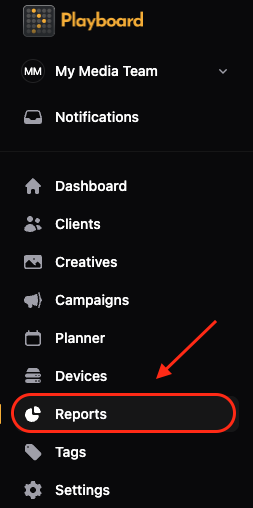
To access reports:
- Open the Reports page
- From the main menu, click Reports.
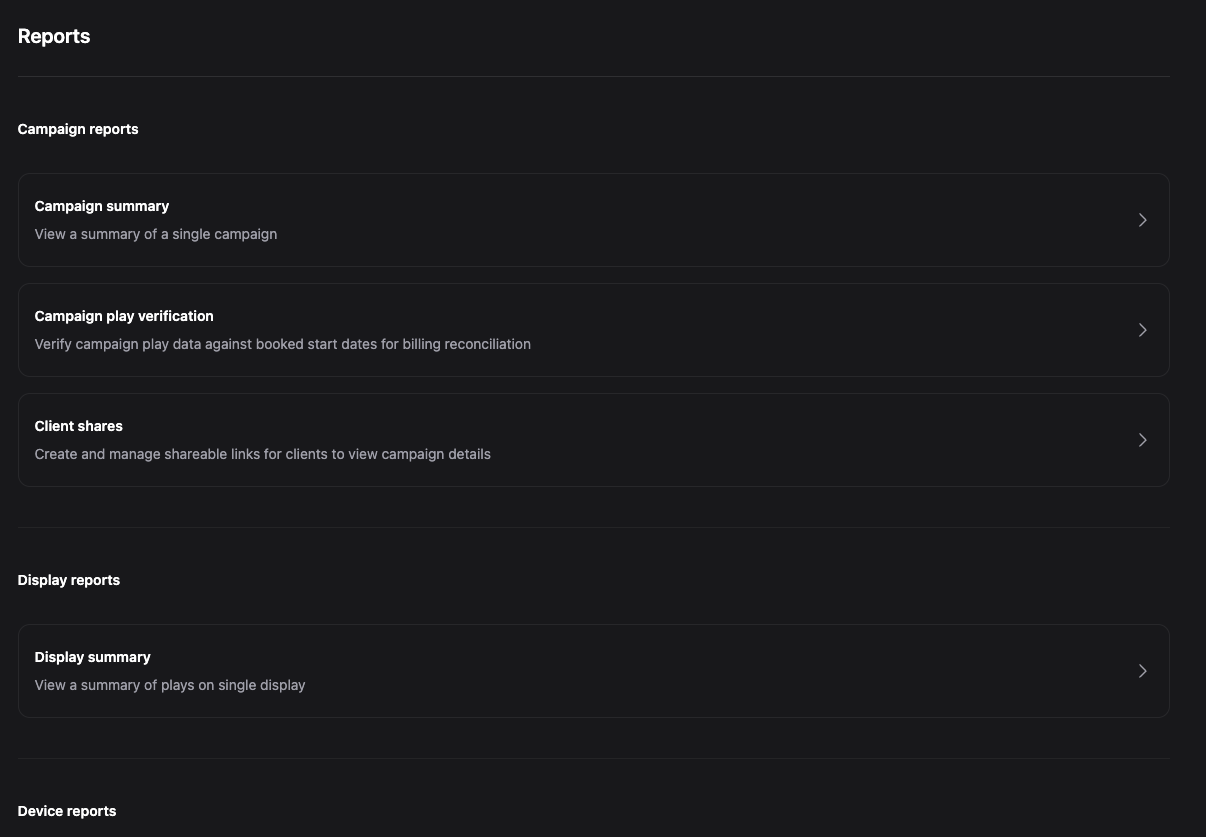
- Choose the report type
- Campaign summary: View a summary for a single campaign.
- Campaign play verification: Check campaign play logs against booked dates for billing accuracy.
- Client shares: Create or manage view-only links for clients.
- Display summary: View a summary of plays for a given display.
Campaign Summary
To view a campaign summary report:
- Select Campaign Summary
- Click Campaign summary from the Reports page.
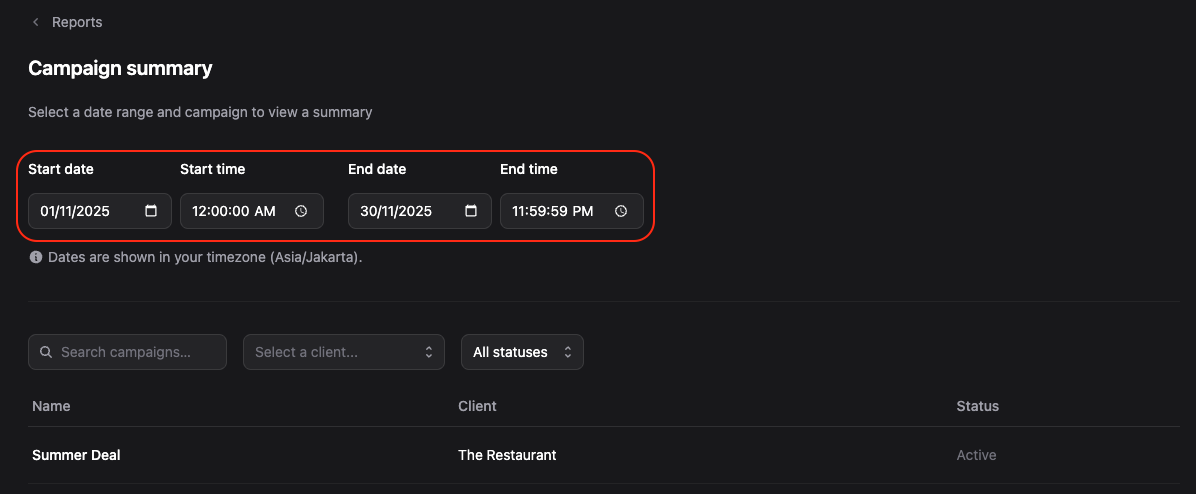
- Set date range
- Start date: Choose when the campaign evaluation begins.
- Start time: Choose the time (default 12:00 AM).
- End date: Choose when evaluation ends.
- End time: Choose the time (default 11:59 PM).
- Filter campaigns
- Search campaigns: Type the name of the campaign (e.g., "Summer Deal").
- Select a client: Filter campaigns by a specific client (e.g., The Restaurant).
- Statuses: Choose between All, Active, Paused, Completed, etc.
- View campaign details
- Click on a campaign from the filtered list to view its detailed summary report.
- The report shows campaign performance metrics, creative statistics, and booking information.
Campaign Play Verification
To verify campaign play data for billing reconciliation:
- Select Campaign Play Verification
- Click Campaign play verification from the Reports page.
- Set filters
- Choose a date range and select filters (client, display, status) to narrow down campaigns.
- Review verification data
- The report shows:
- Whether all campaign plays occurred on the correct dates.
- Verification logs for billing reconciliation.
- Any missing plays or deviations from booked dates.
- The report shows:
- Export data (optional)
- Export the verification data to CSV for further analysis or billing purposes.
Client Shares
To create and manage shareable links for clients:
- Select Client Shares
- Click Client shares from the Reports page.
- Create a shareable link
- Select a campaign to share.
- Generate a shareable link that allows clients to view their campaign summary.
- Manage shared links
- View all existing shared links.
- Revoke or regenerate access anytime.
- Clients can view their campaign performance reports through the shared link without logging in.
Display Summary
To view a summary of plays for a specific display:
- Select Display Summary
- Click Display summary from the Reports page.
- Select a display
- Choose the display you want to view reports for.
- Set date range
- Select the date range for the report period.
- Review display metrics
- The report shows:
- Play count on the individual screen.
- Specific display activity over time.
- Performance metrics per location.
- The report shows: