Installing Player App
- Log in to the Playboard web portal
- Sign in to your Playboard account at https://app.playboard.live/signin.
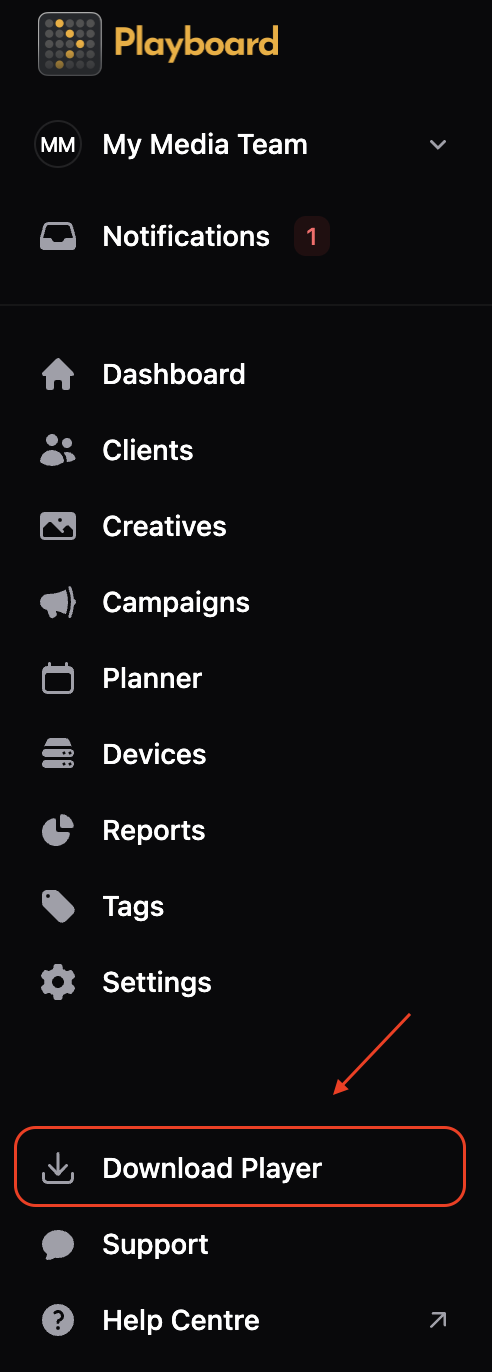
- Go to Downloads
- From the left sidebar menu, click Download Player (located at the bottom of the menu).
- Choose your operating system
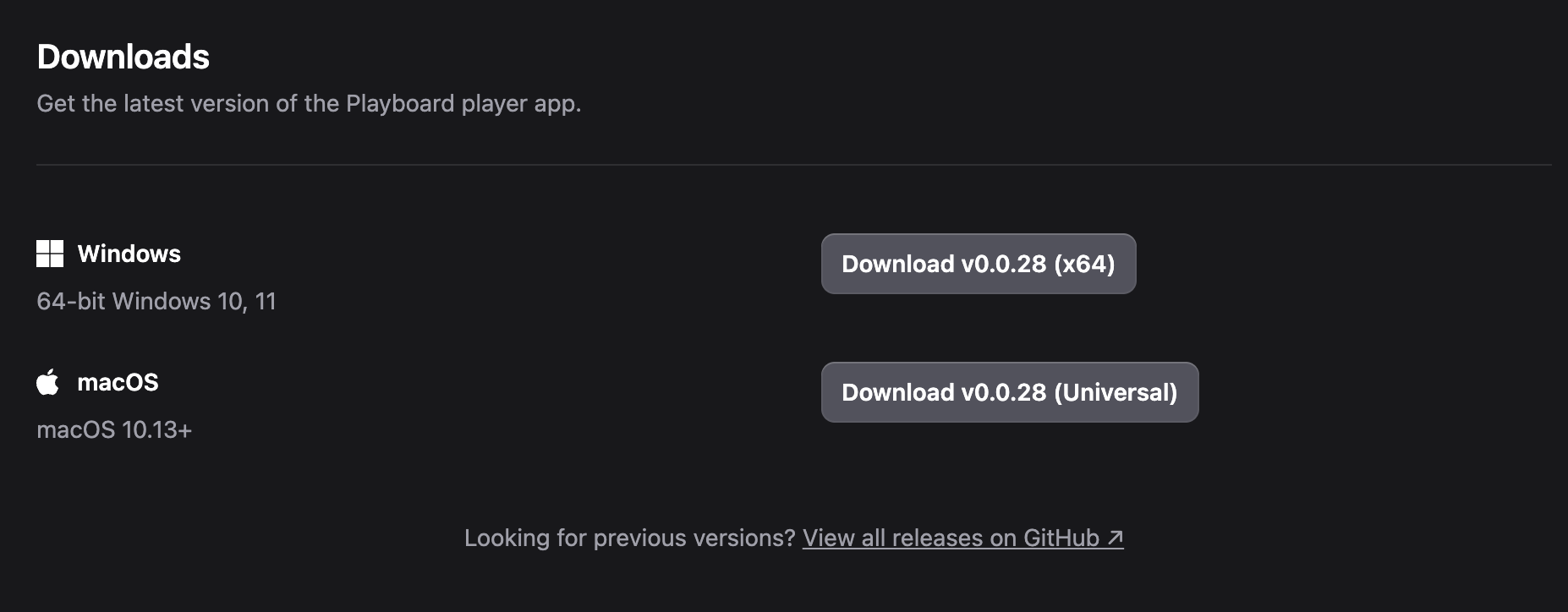
- On the Downloads page, select your OS: Windows or macOS.
- Download the installer
- Click the appropriate download button:
- Windows: Download vX.X.X (x64) — for 64-bit Windows 10/11
- macOS: Download vX.X.X (Universal) — for modern Mac hardware (Intel & Apple Silicon)
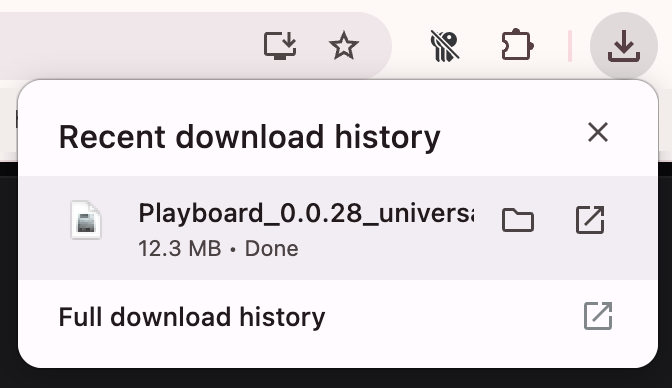
- Save the downloaded file to the device where you want to install the player.
- Click the appropriate download button:
info
Need an older release? Click View all releases on GitHub to access previous versions.
Direct Download URL
To download directly on the target device without logging in, you can access the latest release at:
https://github.com/Playboard-Pro/playboard-releases/releases/latest
- Windows: Pick the file ending in
_x64-setup.exe - macOS: Pick the file ending in
_universal.dmg
Install on Windows
- Run the installer
- Locate the downloaded
.exefile and run it as administrator (right-click → Run as administrator).
- Locate the downloaded
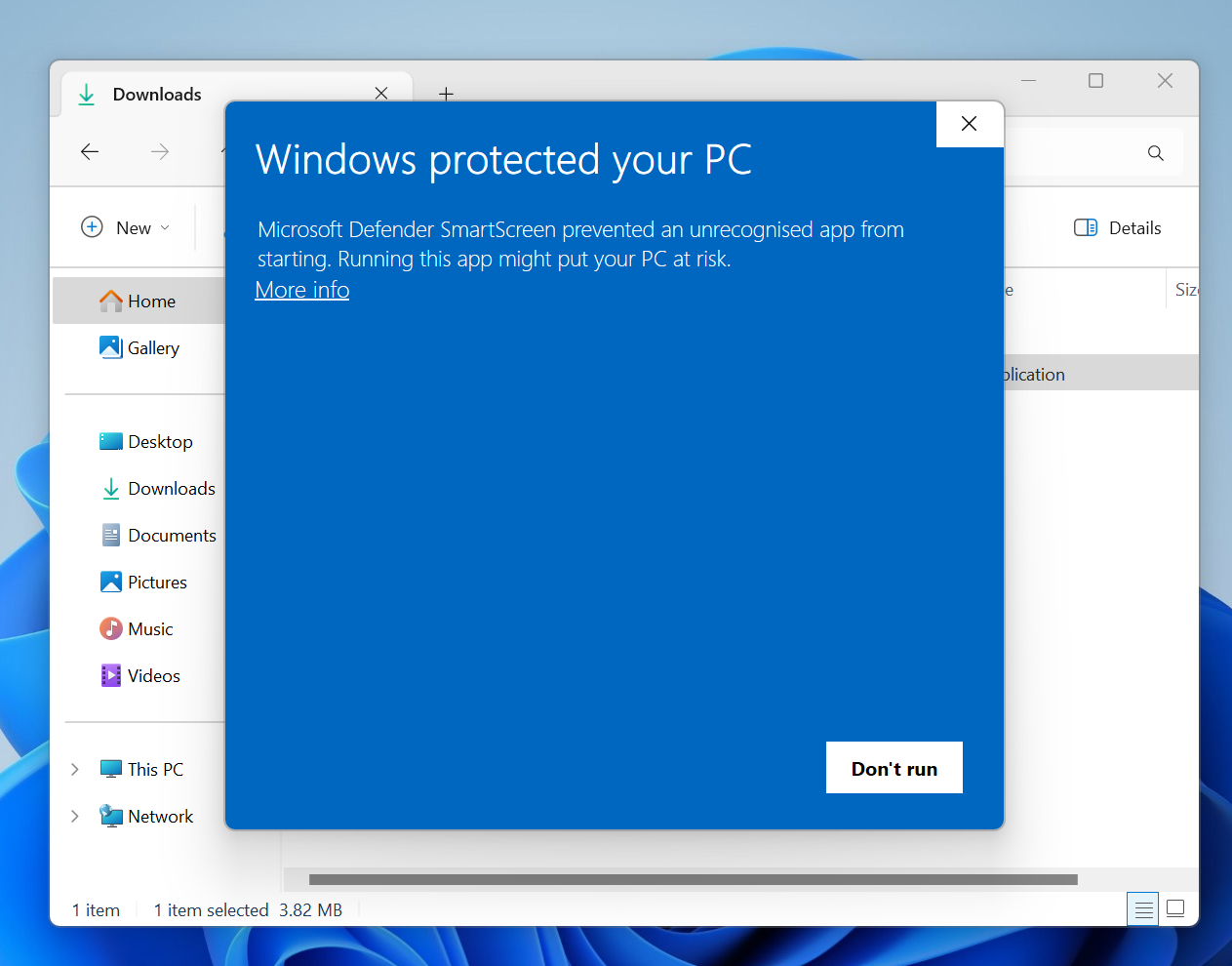
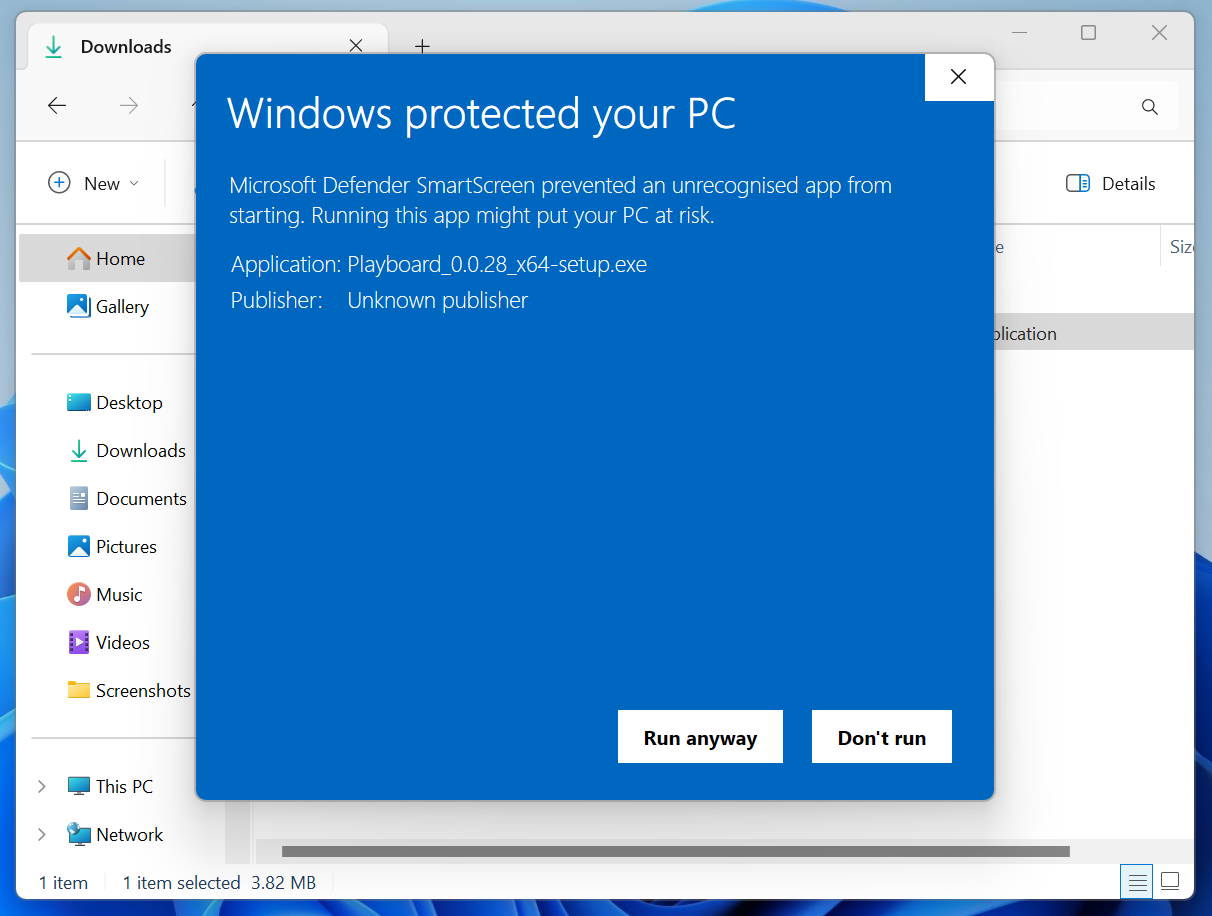
- Allow Windows Defender SmartScreen
- If Windows Defender SmartScreen blocks the installer, click More info, then click Run anyway.
- Follow the installation wizard
- Click Next through the installation prompts to complete the setup.
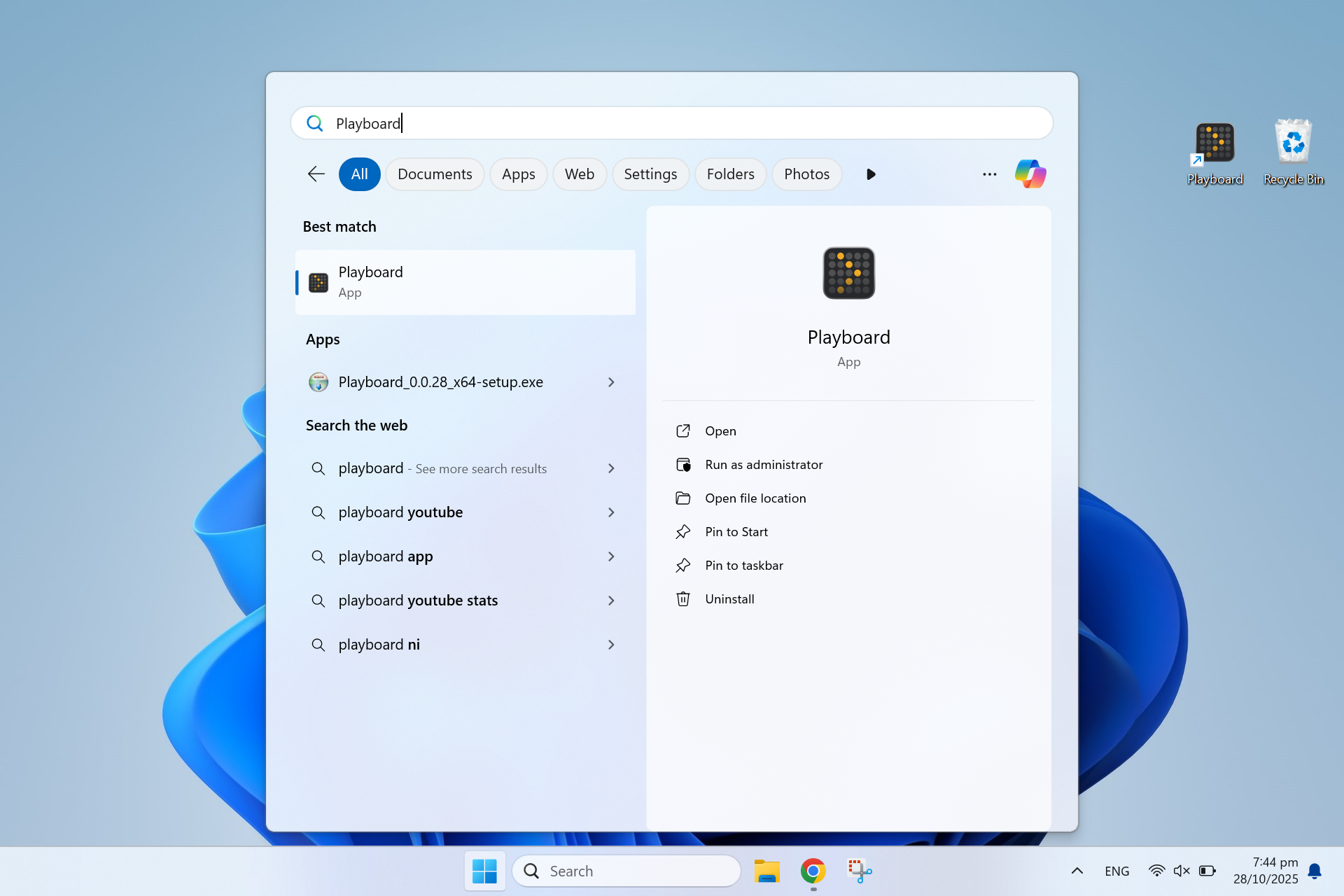
- Launch Playboard Player
- After installation, launch Playboard from the Start menu or desktop shortcut.
Install on macOS
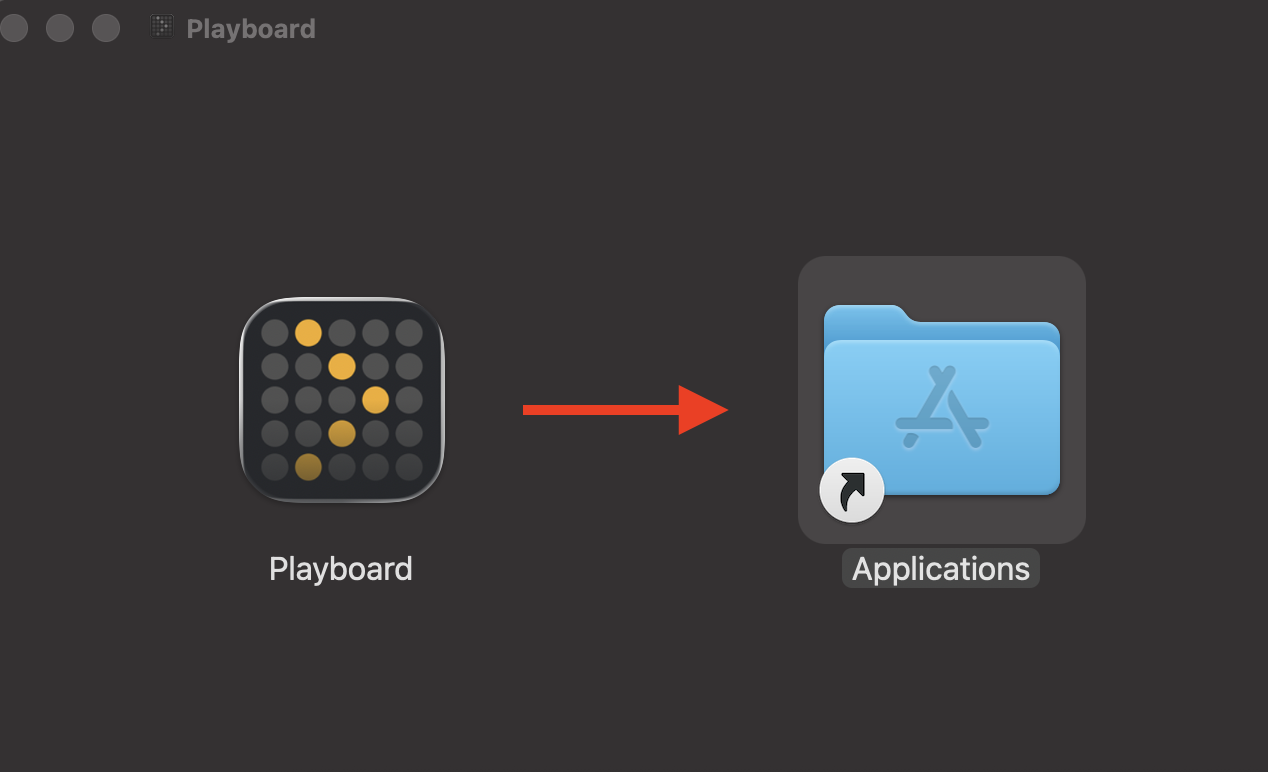
- Install the application
- Open the downloaded
.dmgfile. - Drag the Playboard Player icon to the Applications folder.
- Open the downloaded
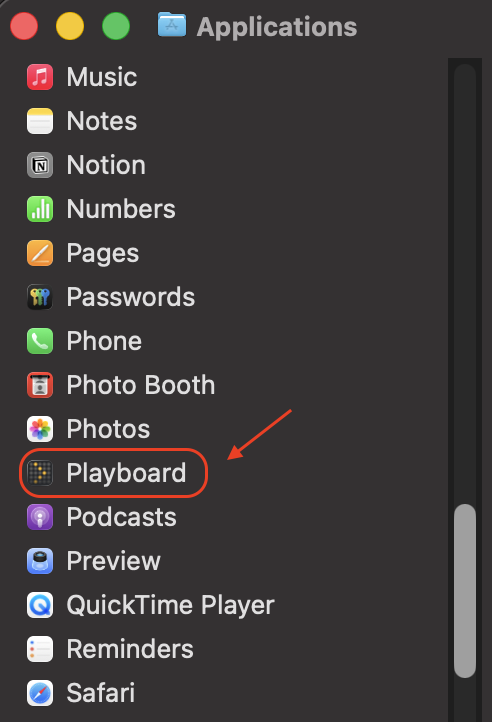
- Launch Playboard Player
- Open Applications and double-click Playboard Player to launch it.
- Allow the app to run (first launch only)
- The first time you open Playboard Player, macOS may block it due to Gatekeeper security.
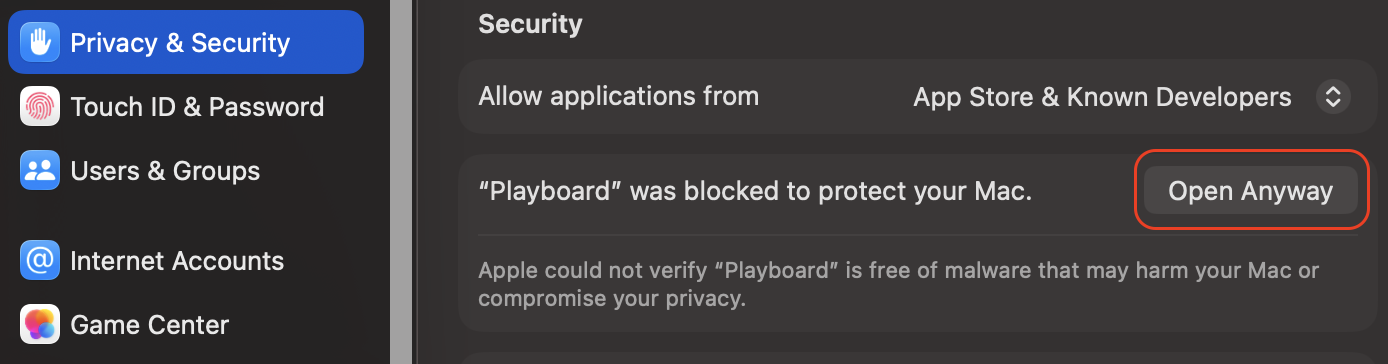
- If blocked, go to System Settings → Privacy & Security → General.
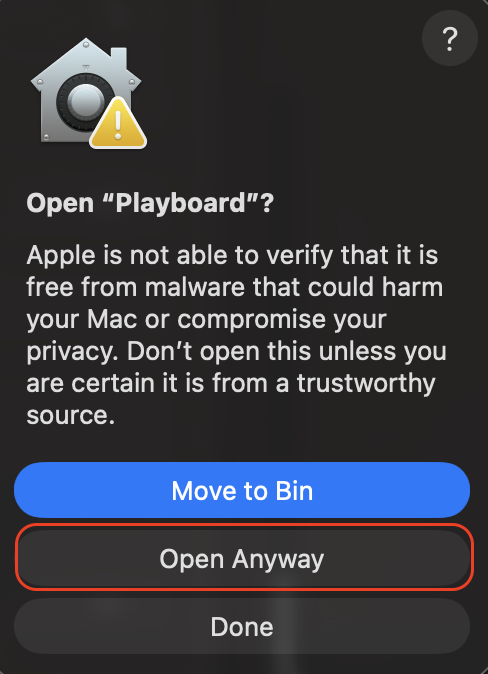
- Click Open Anyway next to the Playboard Player message.
- If prompted, authenticate with an admin password.
- Launch Playboard Player
- Launch Playboard from your Applications folder.
Auto Start
Auto Start is enabled by default. The Playboard Player will automatically start when the computer boots up.
To change this setting:
- Open player settings
- Hover over the top-left corner of the player window and click the ⚙️ (gear) icon.
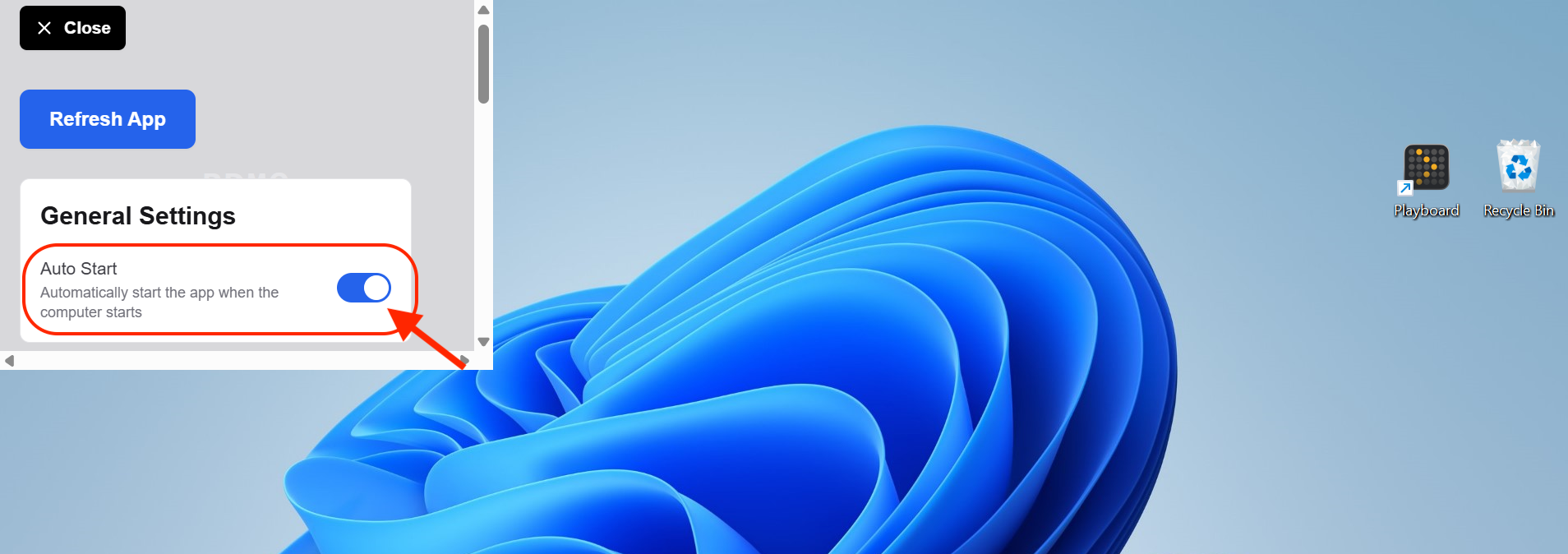
- Toggle Auto Start
- In the settings, toggle the Auto Start option on or off as needed.