Invite Team Members
Only team Owners and Admins can invite new members. On the Pro plan, you can choose the role of each new member. On other plans, new members join as Admin.
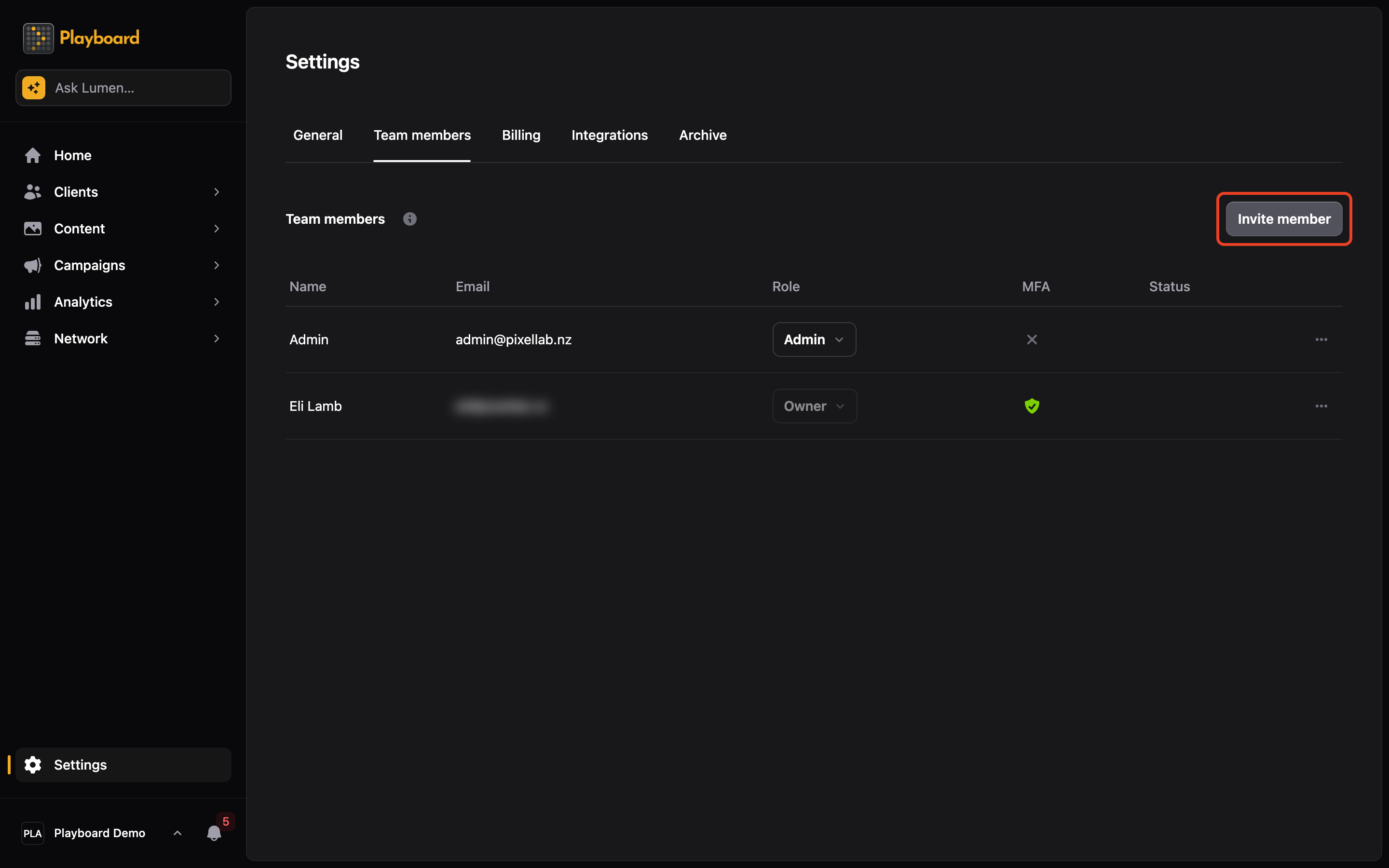
- Go to Settings → Team members
- Click Settings at the bottom of the left sidebar, then click the Team members tab.
- Click the Invite member button.
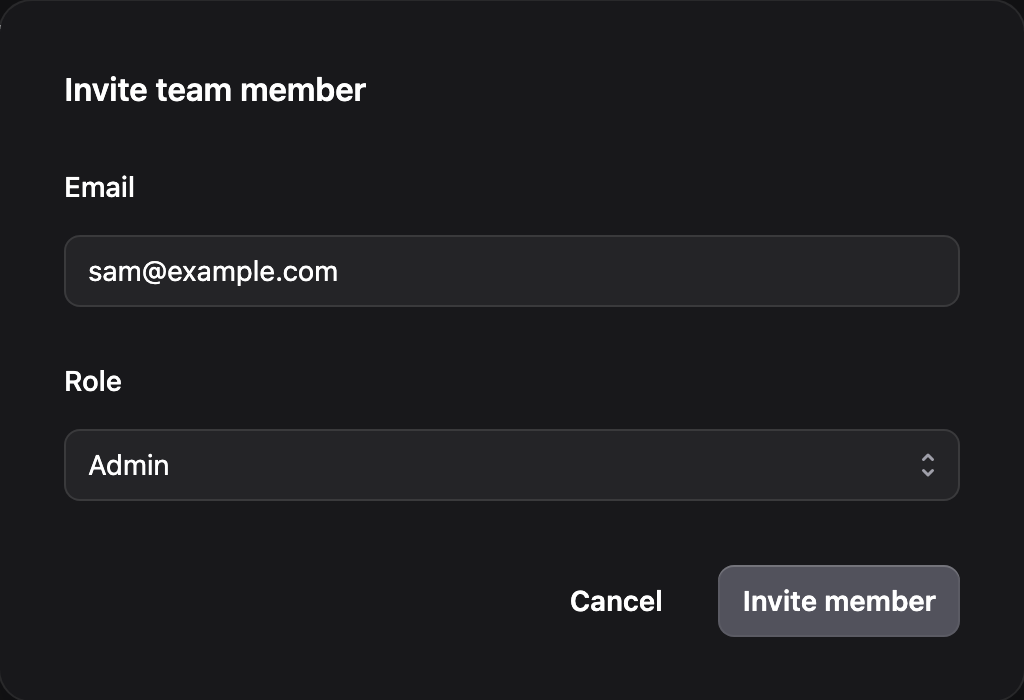
- Enter their email and select their role
- In the Invite team member dialog, enter the team member's Email.
- (Pro) Select their Role from the dropdown. The default role is Admin.
- Click Invite member.
Role selection during invite is only available on the Pro plan.
- The invited member receives an email.
- Every invited member receives an email with the subject "You have been invited to join team name on Playboard". The email has an Accept Invitation button.
- Existing users (with a Playboard account) also see the invitation on the Notifications page in the app.
If the invited member already has a Playboard account, they can accept the invite directly from the Notifications page without needing to check their email. To open this page, click the bell icon at the bottom of the left sidebar.
- Accepting the invitation
- New users: Click Accept Invitation in the email. On the Complete your profile page, enter a Full name, Password, and Confirm password, then click Continue to account. The Notifications page opens. Click Accept on the team invitation.
- Existing users: Click Accept Invitation in the email, or open the Notifications page. Find the team invitation and click Accept. To refuse the invitation, click Decline.
- If you belong to more than one team, click your team name at the bottom of the left sidebar to switch teams.
- Managing invitations
- You can view pending invitations in the Team members table (they appear with a "Pending invitation" badge).
- An invitation expires after 30 days. Expired invitations show an "Expired" badge.
- You can click Resend invite or Cancel invite from the actions menu (three dots) next to an invitation. Resend invite sends a new email and resets the 30 days.
Manage Team Members
- Change a role: Click the role button next to the member's name and select a new role. The Editor and Contributor roles are only available on the Pro plan.
- Remove a member: From the actions menu (three dots), click Remove member, then click Remove Member to confirm.
Each team must keep at least one Owner. You cannot change the role of the last Owner or remove them from the team.
User Roles
Assign user roles to limit access to Playboard. Each team must have at least one Owner and you can assign the Owner role to multiple users. Only an Owner can assign the Owner role, or change or remove another Owner.
Some role-based access controls are only available on the Pro plan.
| Role | |
|---|---|
| Owner | Full access to all features and team management. Can manage billing and delete the team. |
| Admin | Full access to all features and team management. Cannot manage billing or delete the team. |
| Editor (Pro) | Can manage content, campaigns, creatives, clients, and reports. Cannot access devices or team settings. |
| Contributor (Pro) | Can add creatives, limited access to campaigns designated by higher roles. |
Assigning campaigns to contributor role
Users with a role of Admin or higher can assign campaigns to users with the Contributor role. This is useful when you want to provide limited access for updating content. From the actions menu (three dots), click Manage campaigns. In the dialog, click Assign next to each campaign the contributor can access. To take access away, click Remove.