Forgot Password
- Go to the sign in page
- Navigate to https://app.playboard.live/signin or click "Go to Dashboard" from the homepage (top-right corner or hero section).
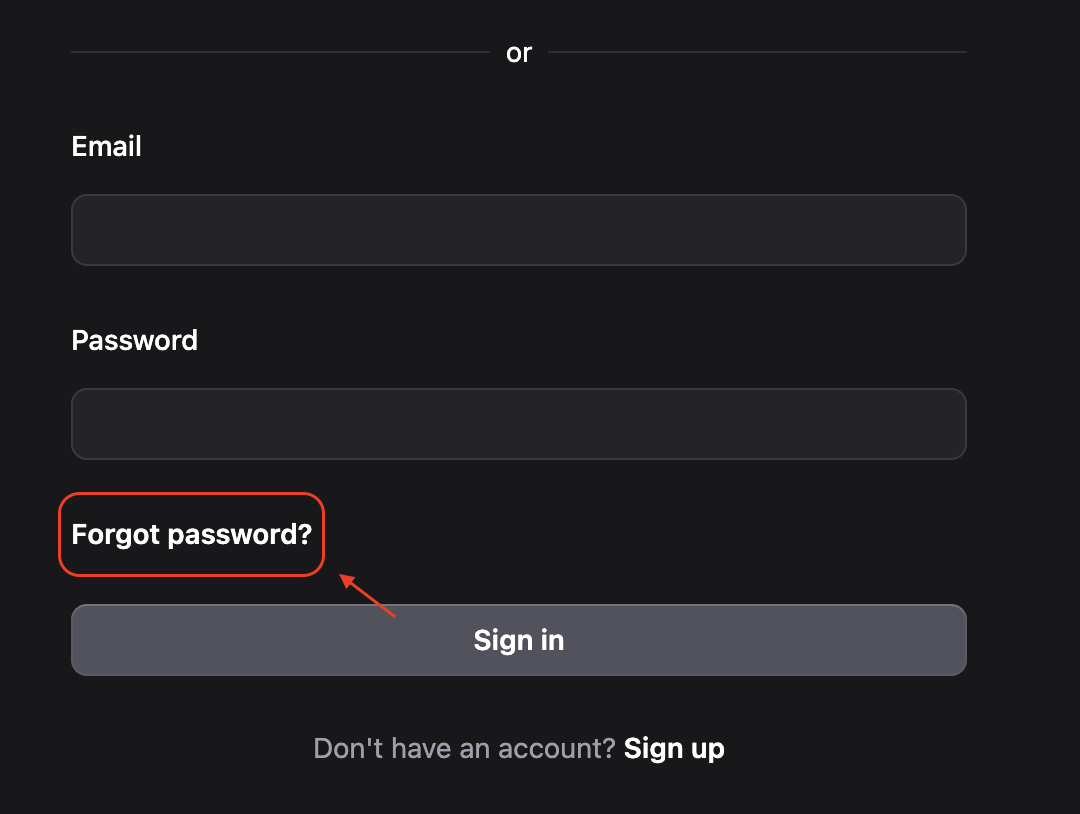
- Click "Forgot password?"
- Click the "Forgot password?" link below the password field on the sign in page.
- Request a password reset
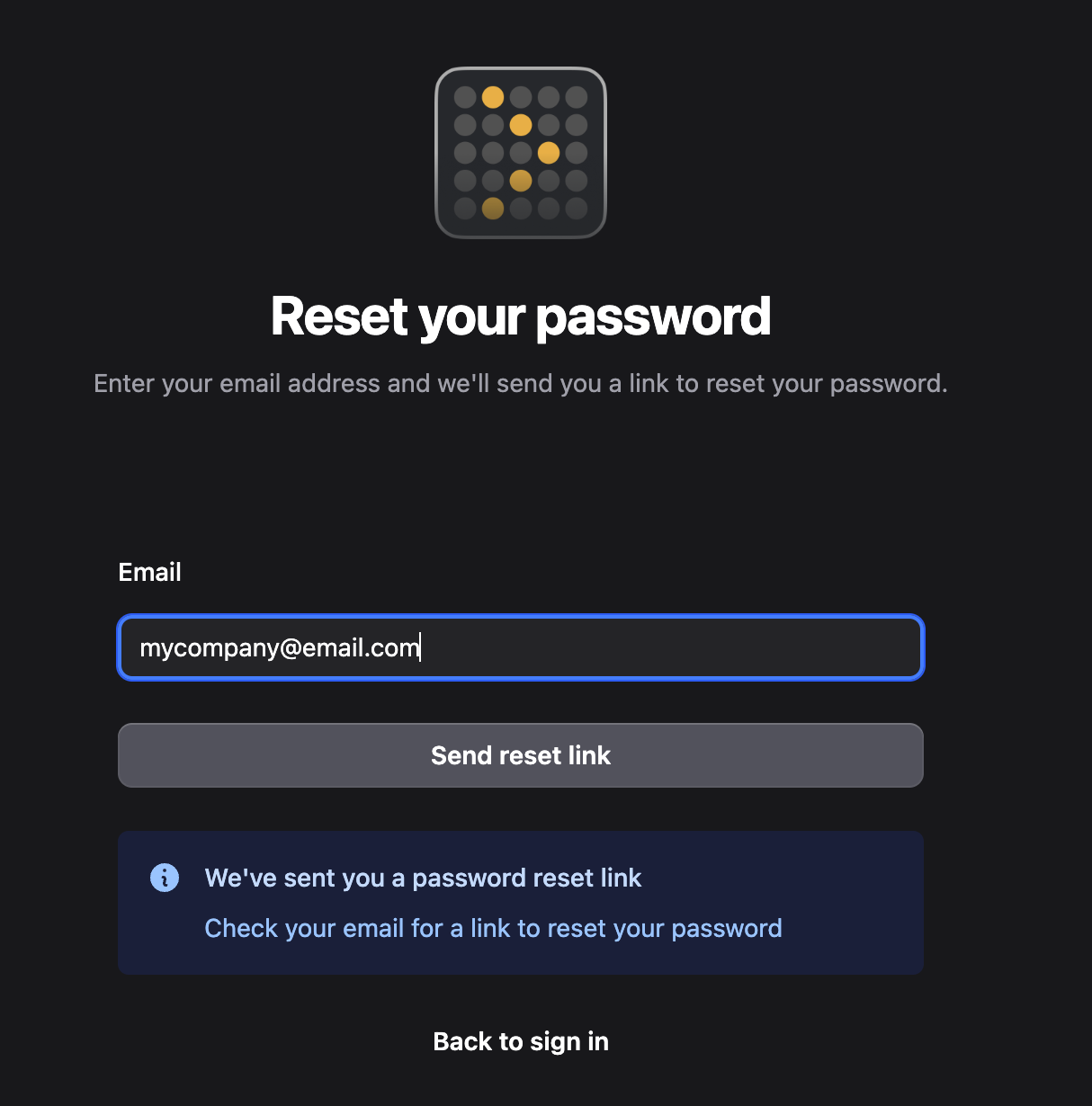
- Enter the email address linked to your Playboard account.
- Click Send reset link.
info
You'll see a confirmation message that the reset link has been sent to your email.
- Check your email inbox
- Look for a message from Playboard with the subject "Reset your password".
- The email contains a Reset password button or link.
warning
If you don't see the email within a few minutes, check your Spam or Junk folders.
- Click the reset link
- Open the email and click the Reset password button or the reset link inside the message.
- This will open the password update page in your browser.
- Set your new password
- On the password update page, enter your New password and Confirm new password.
- Click Update password.
- Sign in with your new password
- After successfully updating your password, you'll be redirected to the sign in page with a success message.
- Sign in using your email and the new password you just created.